

Prompt Designer is available on Enterprise plans. On the Trial plan, Profound generates your Sentiment prompts, and you can’t edit them.
Step 1: Enable Sentiment on your prompts
- Go to Answer Engine Insights > Prompts > Modify prompts to open the Prompt Designer.
- Select the prompts you want to analyze for Sentiment.
- Select Edit > Analysis Types at the bottom of the table.
- In the Select types menu, select Sentiment, then select Add Types.
- Select Save at the top of the page.
If you replace your prompts, for example by deleting them and uploading a new CSV file, check whether the new prompts have Sentiment enabled. If they don’t, repeat the steps above.
Step 2: Set the date range and establish a baseline
Go to Answer Engine Insights and select the Sentiment tab in the top navigation. Use the date range filter to select your monitoring window. The Prev. Period dropdown controls your comparison baseline.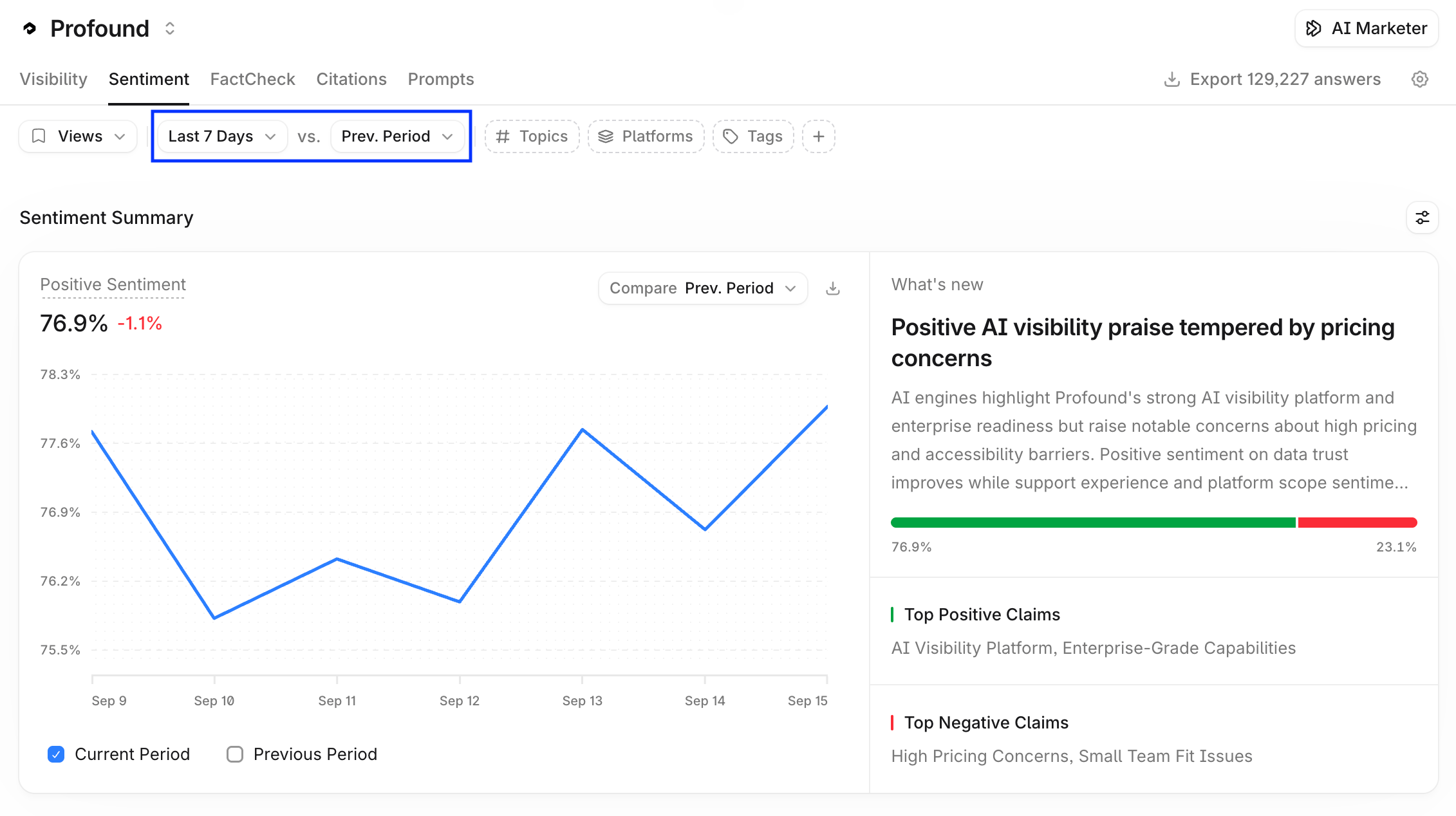
Step 3: Investigate and diagnose
Use the drill-down flow to investigate: start from your overall sentiment score, navigate into the themes driving it, then into the attributes within each theme, then into the specific claims behind those attributes included in the content of the cited pages. When investigating a theme, open the cited pages to see the exact content Profound surfaced and determine whether a content fix or a product change is the right response.General diagnosis advice
- Negative themes with rising mention counts: investigate first
- Positive themes with rising counts: note and reinforce
- Themes trending down: identify what changed
- A single negative mention with no broader trend: likely noise, do not act on it